In many situations, you may need to convert PDF documents into high-quality images—be it for presentations, social media, archival, or design tasks. Using a free PDF to JPG converter that is reliable and effective can save you time and effort. In this article, we’ll explore what makes a converter “best,” review top free tools, and introduce how your own tool at imagresizer.xyz fits into this ecosystem.
What Makes a PDF to JPG Converter Great?
Before diving into tool recommendations, it’s important to understand the key features that differentiate a decent converter from an excellent one:
- Image Quality & Resolution
The converter must preserve clarity, colors, and readability when converting PDF pages or images into JPG format. - Privacy & Security
Any uploaded files should be processed securely (e.g. via HTTPS) and automatically deleted from the server afterward. - No Watermarks or Hidden Costs
Truly free tools should not impose watermarks or force users to upgrade just to remove branding. - Multiple Conversion Modes
Good tools let you convert full PDF pages into JPG or extract embedded images from a PDF. - Speed & Usability
It should be fast, intuitive, and responsive, ideally with drag-and-drop upload, progress feedback, and batch features. - Device & Browser Compatibility
The best converters work across desktop, mobile, and various browsers — no app installation required.
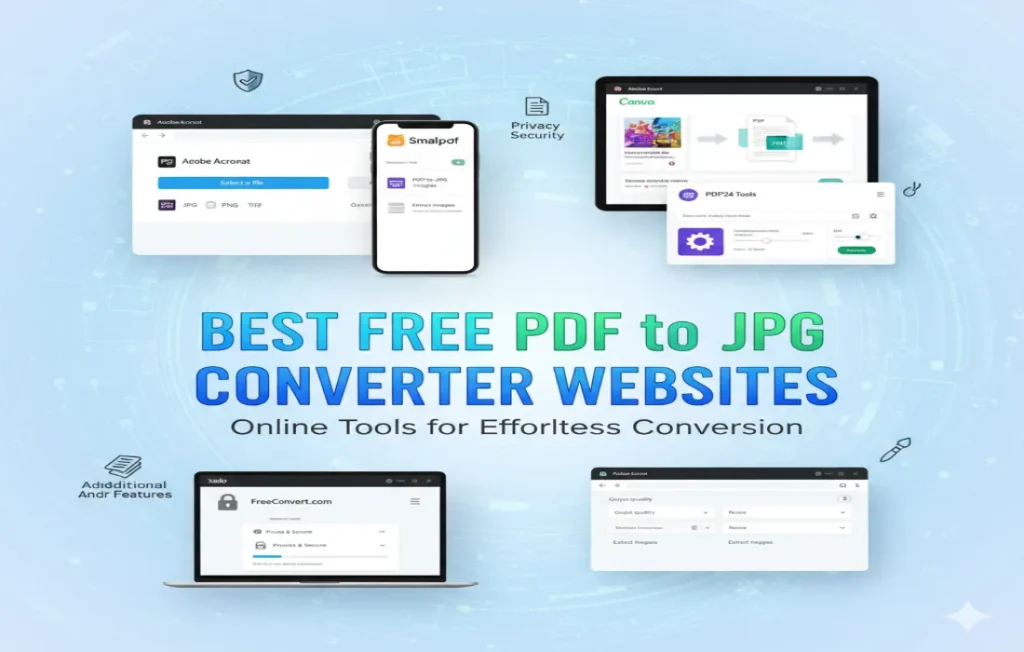
Top Free PDF to JPG Converter Websites
Here are some of the most trustworthy and feature-rich free converters available today:
1. Smallpdf
Smallpdf offers a seamless interface to convert PDF pages or images into JPGs. It secures files via TLS encryption and deletes them automatically after a short interval. Smallpdf
2. iLovePDF
With iLovePDF, you can convert each page into a JPG or “extract images” from inside the PDF. It’s user friendly and supports multi-page conversion. iLovePDF – Online tools for PDF
3. FreeConvert
FreeConvert is known for being secure and fast. It lets you convert PDF to JPG with adjustable settings for DPI, compression, and page range. FreeConvert
4. FreePDFConvert
This site provides a simple three-step flow: upload, convert, and download. It also offers editing tools beyond just conversion. Free PDF Converter
5. Adobe Acrobat (Online PDF Converter)
Adobe’s free online tool lets you convert PDF to JPG (and other image formats) with quality output, no watermark, and strong brand reputation. Adobe
6. Zamzar (for smaller files)
Zamzar supports many formats and works without requiring an account for modest file sizes. However, it imposes limits for free users. Wikipedia
How to Use a PDF to JPG Converter: Basic Steps
- Open the converter site
- Upload your PDF file (drag & drop or file select)
- Choose mode: full page conversion or image extraction
- (Optional) Adjust settings: resolution, compression, page range
- Click “Convert”
- Download the JPG(s) — often delivered as a ZIP if multiple files
Most converters also allow uploading from cloud storage services like Google Drive or Dropbox.
How ImagResizer.xyz Can Help Too
While imagresizer.xyz is primarily focused on image operations like resizing, cropping, and format conversions, it can complement your workflow when converting PDF to JPG. After converting pages using any of the above tools, you can bring the resulting JPGs to imagresizer.xyz for:
- Resizing images without quality loss
- Cropping or trimming margins
- Converting to other formats (e.g. JPG → PNG)
- Compressing images for faster loading
Thus, imagresizer.xyz works well alongside free PDF to JPG converters to achieve clean, optimized image results.
Tips to Choose the Right Converter
- Check file size limits — free tools often restrict input size
- Batch vs Single — some tools limit the number of pages per job
- Speed & queue time — avoid tools with long waiting in queue
- Security policies — look for tools that delete your files automatically
- Extra features — sometimes editors, watermark removal, or crop features are useful
Frequently Asked Questions (FAQs)
Q1: Are free PDF to JPG converters safe?
A: If they use HTTPS and delete files after use, yes. Avoid sites that require suspicious downloads or browser extensions.
Q2: Will converting affect image quality?
A: With a good tool, minimal to no visible loss occurs—especially for clean text PDFs.
Q3: Can I convert only selected pages?
A: Yes, many converters allow specifying a page range (for example, pages 2–5) before converting.
Q4: Do these tools support batch conversion?
A: Some do; others limit to one at a time unless you upgrade to a paid version.
Q5: Can I extract images embedded inside a PDF?
A: Yes, some tools provide both full-page convert and image extraction modes (e.g. iLovePDF) iLovePDF – Online tools for PDF
Q6: Are my converted images stored permanently on the server?
A: Trusted tools delete files automatically (often within an hour or less). Always check their privacy policies.
Q7: Is there a watermark in free version?
A: The best tools do not add watermarks in their free mode. Avoid ones that force branding.
Q8: Which image format is better, JPG or PNG?
A: JPG is excellent for photos and general images. PNG is better for transparency or sharper line art. Choose based on your usage.
Q9: Can I do PDF to JPG offline?
A: Yes, desktop tools like Adobe Acrobat or certain PDF editors let you convert offline. But online tools are convenient and accessible.
Q10: What should I do if the conversion fails?
A: Try a different converter, reduce file size, or break your PDF into smaller chunks and convert separately.
Conclusion
Finding a free and the best PDF to JPG converter website is crucial when you want speed, quality, and security without paying or installing software. The tools we covered—Smallpdf, iLovePDF, FreeConvert, Adobe’s online converter, and Zamzar—cover a range of features, file sizes, and usage tiers.
Pairing any of these converters with imagresizer.xyz gives you full control—from initial conversion to final output tweaks. So whether you’re converting a brochure, scanned document, or design portfolio, this combination can make your PDF → JPG workflow smooth, efficient, and high quality.
Give one of these converters a try today—and don’t forget to use imagresizer.xyz to polish the results afterward.